Our living room lights are smart lights, controlled through Home Assistant. That works well for us, but it leaves out two groups of people.
The first is small hands. As the days get shorter, the mornings start in the dark, and the only way to switch on the living room lights is the Home Assistant app on a phone that small hands don’t have. The second is guests: they don’t have the app installed, nor an account to use it anyway, so they depend on us to turn a lamp on or off.
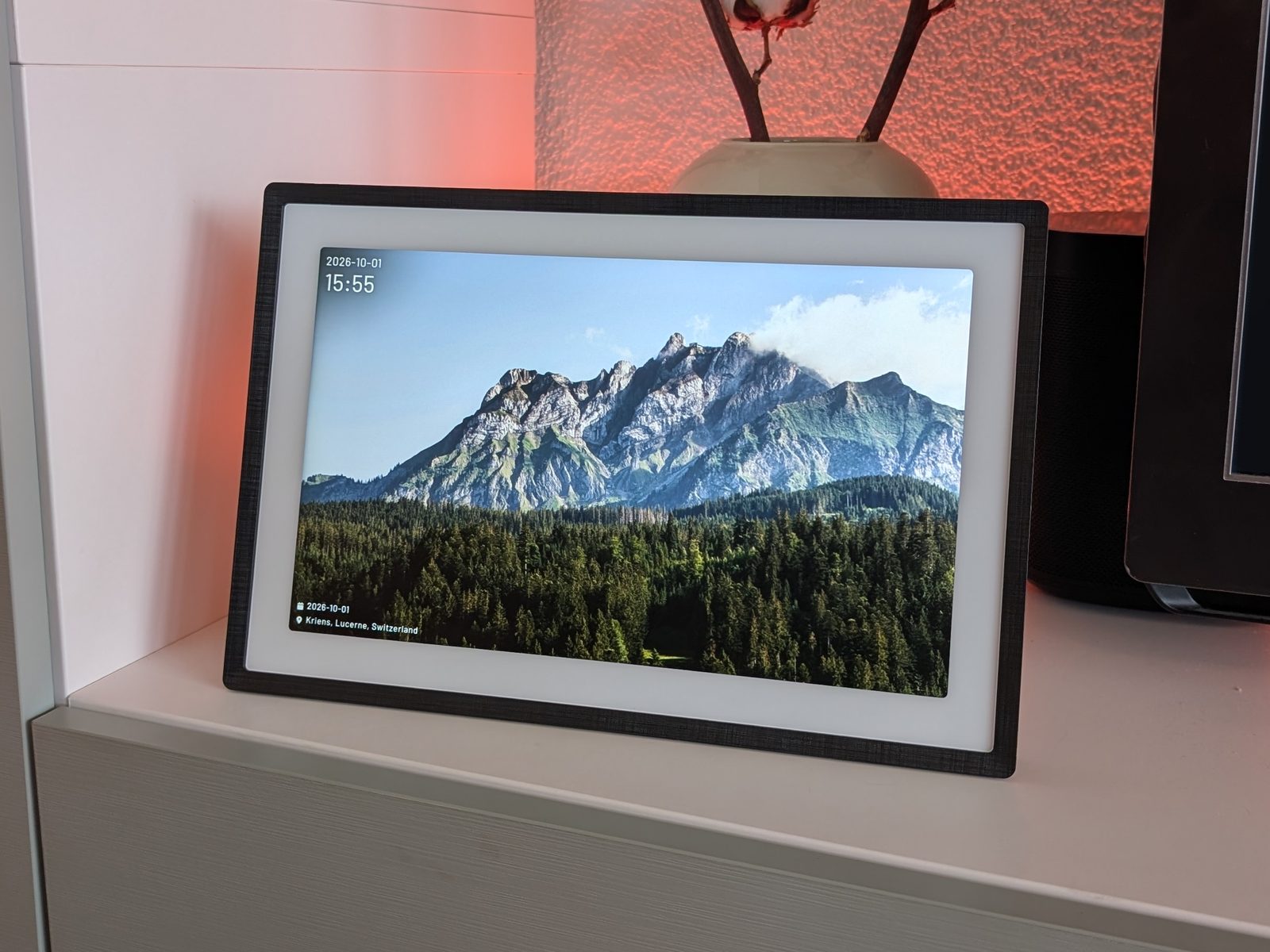
What I needed was a simple panel within reach of small hands, on the TV shelf, with big buttons that anyone can use. And since that meant adding a screen to the living room anyway, I’d rather it be a nice picture frame showing our family photos than an ugly tablet. A photo frame that turns into a light switch at a touch.
One more requirement: it had to be local-first. It may depend on my home server, but not on any cloud service, and the frame itself should have no internet access at all.
Commercial photo frames look great, but they only work with their vendor’s app and cloud. The plan: buy a nice one, break it out of that lock-in, and run open-source software on it instead, as a simple fullscreen display for services I already run at home.
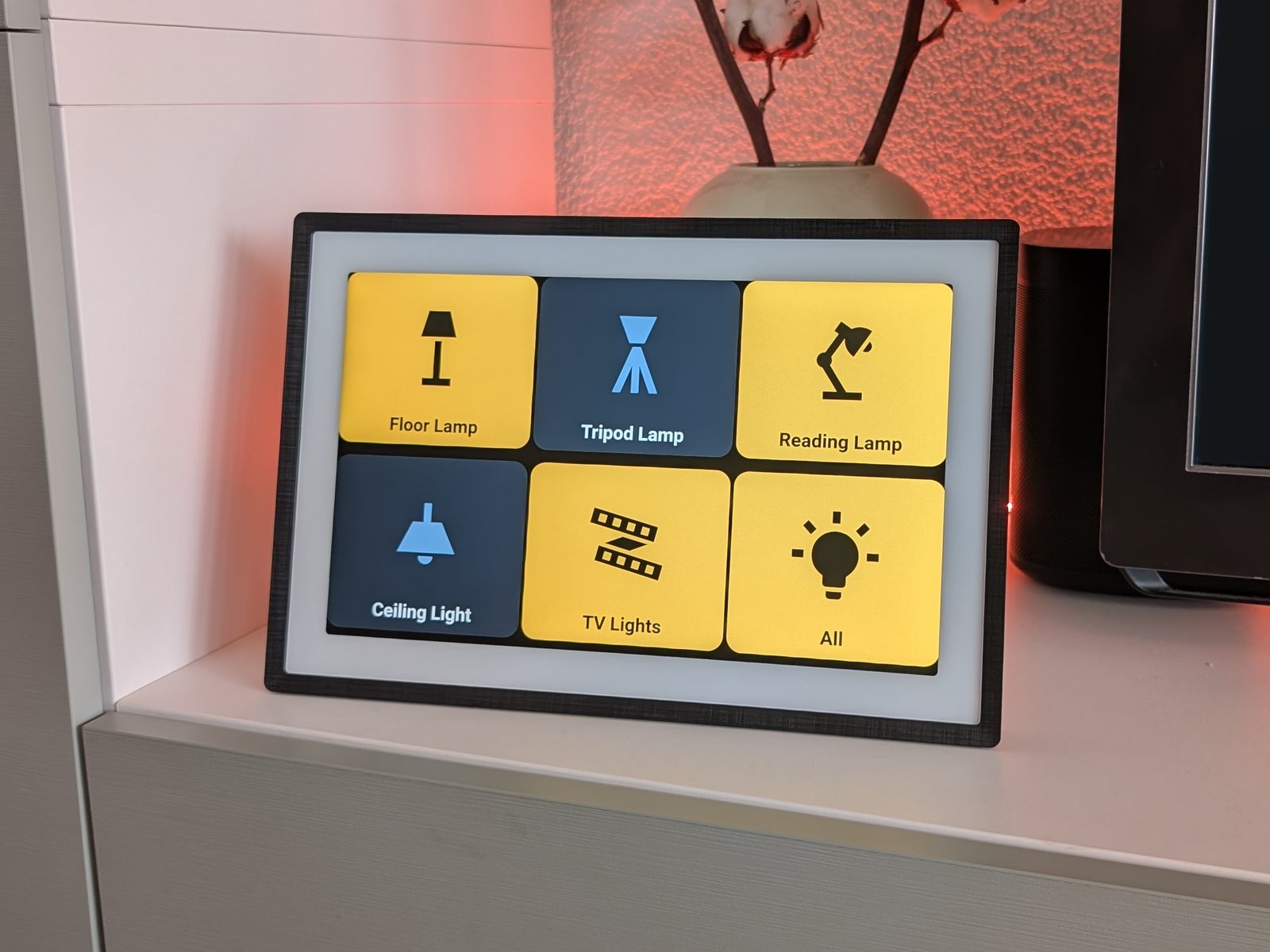
The hardware: Pexar 11" Link to heading
I picked the Pexar 11" digital photo frame (CHF 168). It runs the Frameo app on Android 11.
Why this one:
- It looks like a frame. 11", 2000×1200 (212 PPI), an anti-glare screen with full sRGB coverage, and the right size for a shelf. Photos look great on it.
- Android 11. Recent enough that its system WebView can render a modern web app (it ships Chromium 106). Some cheaper frames run much older Android versions, and an outdated WebView would have been a dead end, because the whole plan relies on showing web pages.
- Someone had already done the hard part. There was a documented case of exactly this model refusing to install apps, with the cause diagnosed and a working fix (more on that below).
- Easy to get in Switzerland. Available on Galaxus with fast delivery.
The trade-offs: a modest 32-bit ARM chip with 2 GB of RAM, and you can’t install apps without patching the system first.
The architecture Link to heading
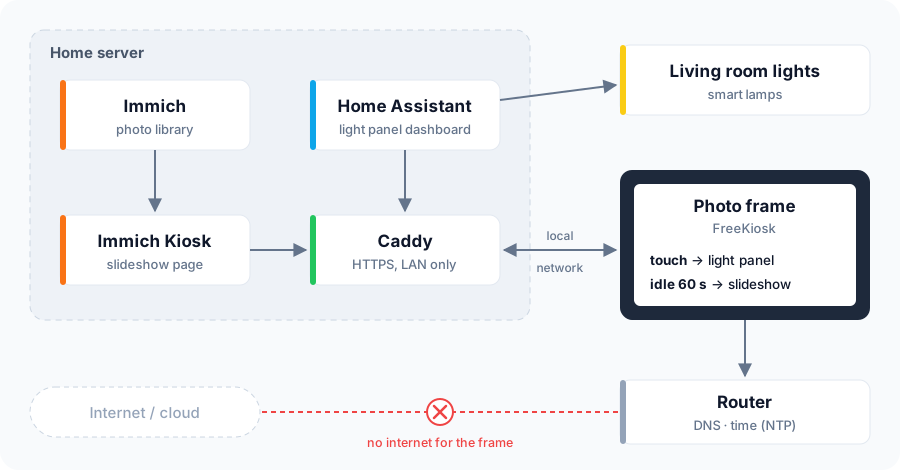
The frame is just a browser. Touch it and you get the light panel; leave it alone for a minute and the photos come back.
Step 1: Getting past the install block Link to heading
Out of the box, ADB works (enable it in Frameo’s settings under About; you may need to join the beta program for the toggle to appear), but every adb install fails. Frameo’s firmware patches Android’s package manager so that only whitelisted system apps can be installed.
The fix comes from the community: Jonathan Schemoul found the bypass, and Stephan Teelen (Kwibox) wrapped it into an installer script. The script pulls the framework’s services.jar from the frame, decompiles it with smali/baksmali, makes the whitelist check (isSystemApp()) always return true, rebuilds the jar, pushes it back, and installs your APK.
Patching the core of Android with a script from the internet deserves a careful read, so I went through it before running anything. The script itself had nothing suspicious. Two things worth knowing:
- On firmware V2.08, changes to
/systemdon’t survive a reboot. The remount appears to work, but the writes never reach storage. That turned out to be good news: the patch only needs to be active while the APK installs, the app stays installed afterwards, and the system is back to stock after the next reboot. The flip side is that you re-run the script whenever you want to install or update an app. - The script failed on this firmware version, so I fixed the bug and, while at it, made the install safer: it now stops on the first error and checks for free space before writing to
/system.
./pexar_installer.sh -a "$(which adb)" freekiosk.apk
Step 2: FreeKiosk, the kiosk app Link to heading
The frame needs an app that shows one web page fullscreen, keeps the screen on, starts at boot, and doesn’t let a curious finger wander off into Android. The best-known option is Fully Kiosk Browser, which works well but is closed source. I went with FreeKiosk instead, because it is free software (MIT-licensed) and actively maintained. That matters for an app that becomes device owner of a screen in my living room: I can read exactly what it does.
FreeKiosk works best as device owner, which lets it hide the system bars and block the home and back buttons. On a frame with no Google account set up, that’s one command:
adb shell dpm set-device-owner com.freekiosk/.DeviceAdminReceiver
(Device owner is hard to undo: you can’t uninstall the app until you remove it again from FreeKiosk’s own settings. Read FreeKiosk’s device owner guide before you do it.)
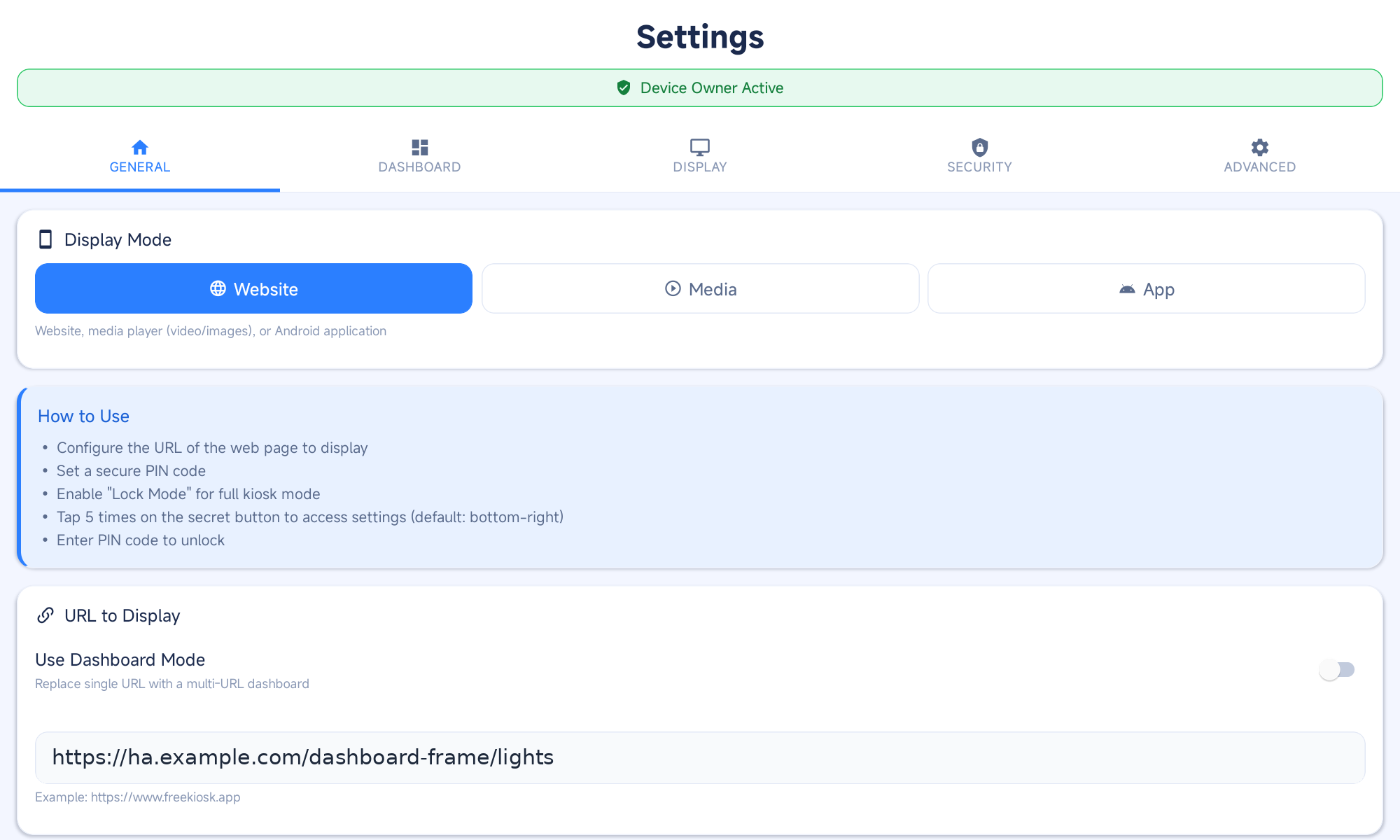
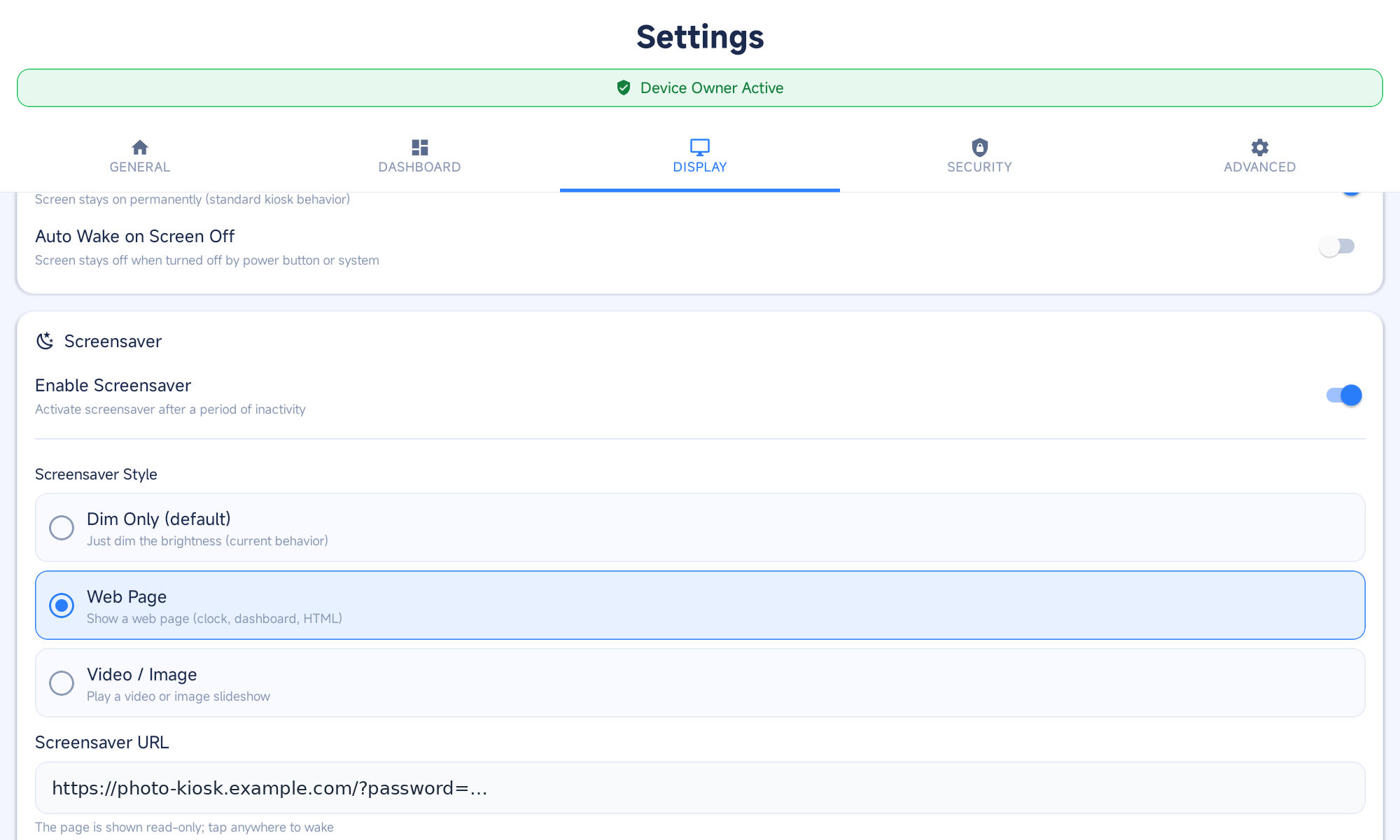
Everything else is configured in the app itself: tap the gear in the corner 5 times, enter the PIN, set the main URL to the light panel (Step 4), then under Screensaver → Web page set the slideshow URL (Step 3) with a 1-minute delay.
FreeKiosk can also be configured over ADB, which is handy for scripting, but on this frame that leaves it stuck on “Loading…” until the next reboot (reported upstream).
Step 3: Photos with Immich Kiosk Link to heading
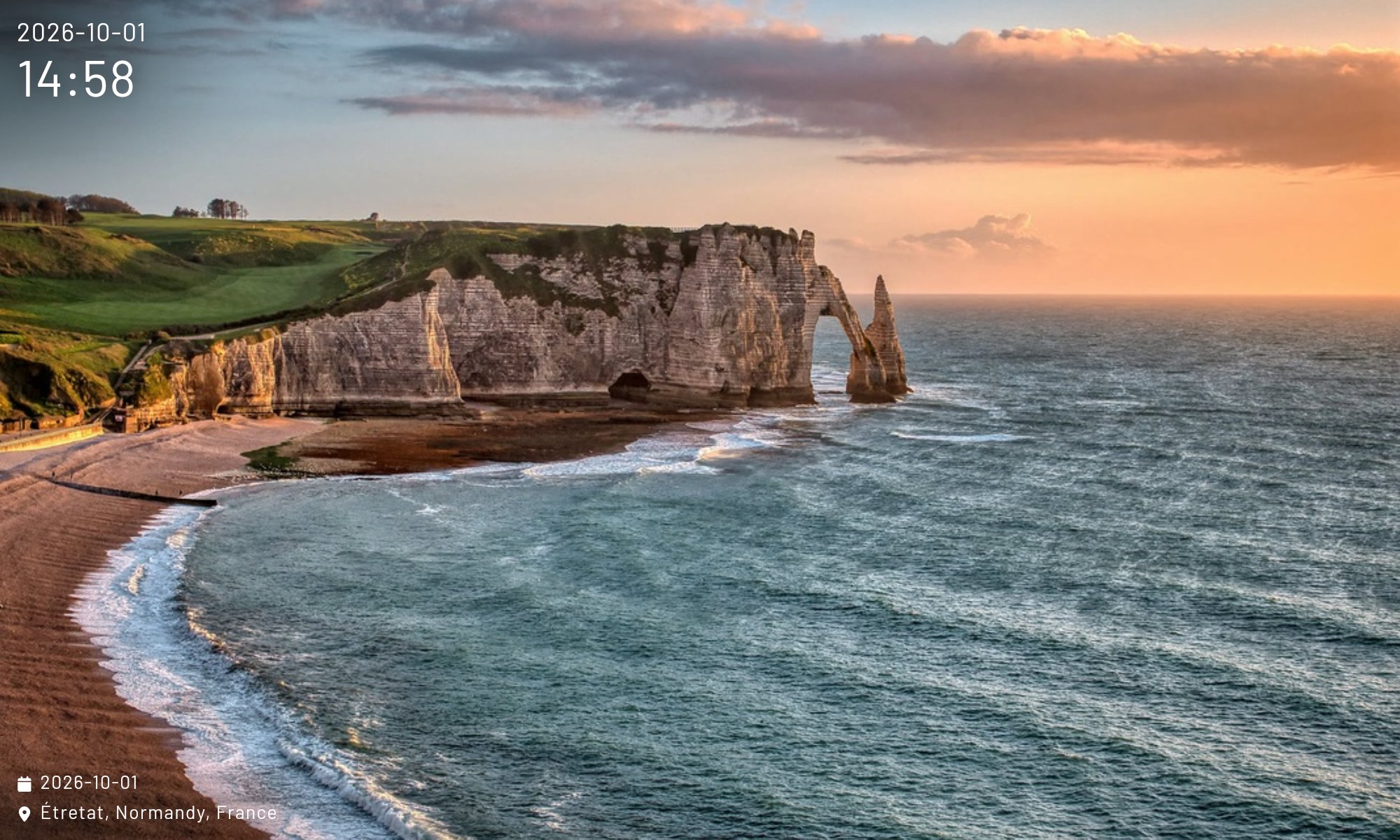
Our photos live in Immich. For the slideshow I use Immich Kiosk, a small web app that shows Immich photos fullscreen, with a clock, the photo’s date and location, and Immich’s “on this day” memories. It runs as a Docker container next to Immich, added to Immich’s docker-compose.yml. Here is my setup:
services:
  immich-kiosk:
    image: ghcr.io/damongolding/immich-kiosk:latest
    restart: unless-stopped
    ports:
      - "127.0.0.1:3000:3000" # only reachable through Caddy
    environment:
      TZ: Europe/Zurich
      LANG: en_US
      KIOSK_IMMICH_URL: http://immich-server:2283
      KIOSK_IMMICH_API_KEY: <your-immich-api-key>
      KIOSK_PASSWORD: <generate-a-random-password>
      KIOSK_ALBUMS: <your-album-id>
      KIOSK_MEMORIES: "true"
      KIOSK_MEMORY_WEIGHT: "0.45" # keep memories from dominating the slideshow
      KIOSK_IMAGE_FIT: cover
      KIOSK_DURATION: "30"
      KIOSK_OPTIMIZE_IMAGES: "true"
      KIOSK_DISABLE_NAVIGATION: "true"
      KIOSK_SHOW_TIME: "true"
      KIOSK_SHOW_DATE: "true"
      KIOSK_DATE_FORMAT: YYYY-MM-DD
      KIOSK_SHOW_IMAGE_DATE: "true"
      KIOSK_IMAGE_DATE_FORMAT: YYYY-MM-DD
      KIOSK_SHOW_IMAGE_LOCATION: "true"
What’s on the frame is simply an Immich album: add or remove photos from the Immich app on a phone, and the frame follows.
Memories show up more often than you’d expect. Kiosk weights each source by the logarithm of its size, so a handful of memories gets a large share of the slides compared to a bigger album. KIOSK_MEMORY_WEIGHT evens it out. I described the case in a discussion about fully even shuffling.
Kiosk is served through Caddy for HTTPS, but only to the local network. Everything happens at home, so there’s no reason to expose it to the internet:
photo-kiosk.example.com {
 @external not remote_ip private_ranges
 abort @external
 reverse_proxy 127.0.0.1:3000
}
The frame’s screensaver URL is then https://photo-kiosk.example.com/?password=<your-kiosk-password>.
Step 4: A light panel for small hands Link to heading
The touch side is a dedicated Home Assistant dashboard: six big tiles filling the screen, one per light plus one for everything. Tap to toggle, bright when on, dark when off. No long-press menus, no sliders, nothing to get lost in.
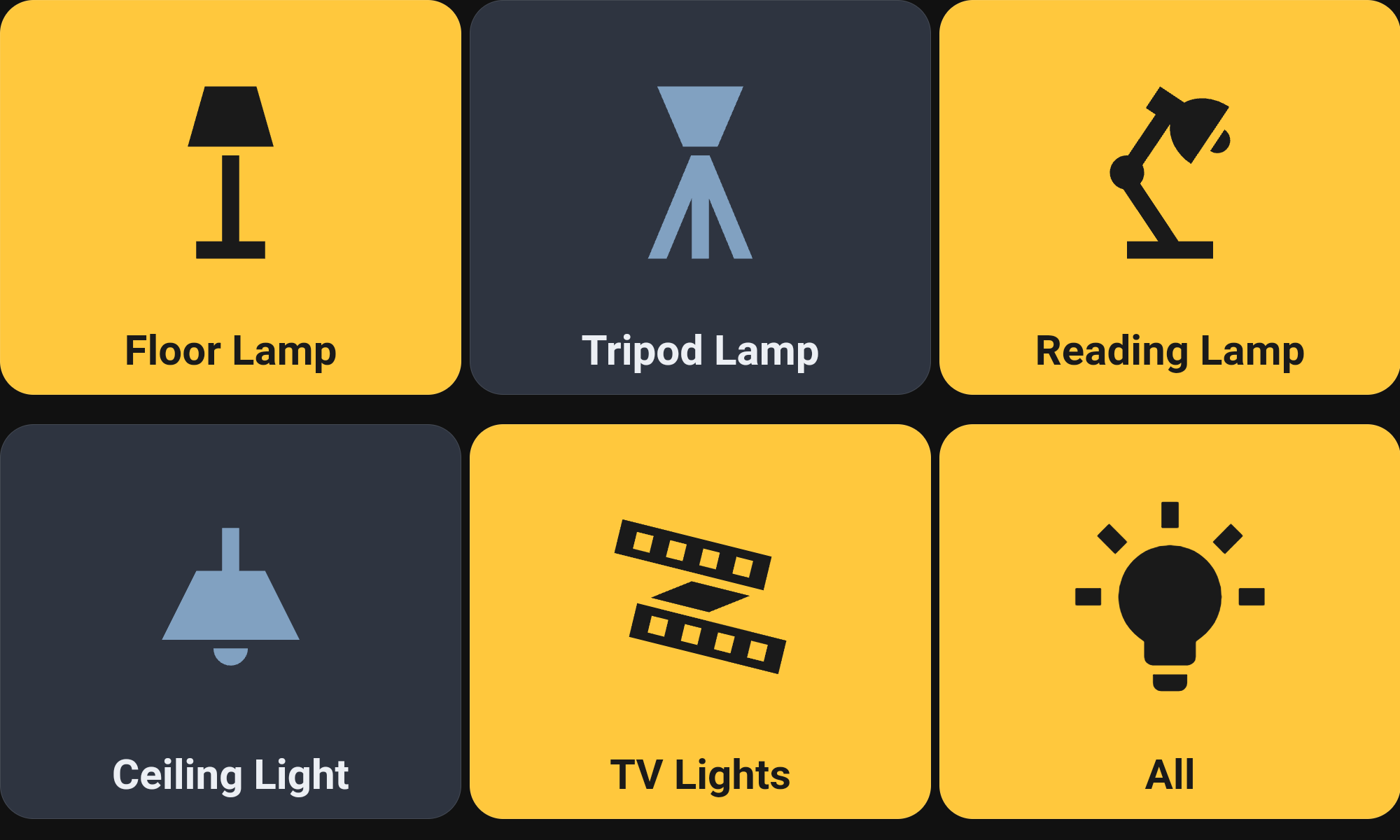
It’s built with two HACS frontend plugins: button-card for the tiles and kiosk-mode to hide Home Assistant’s header and sidebar. The “All” tile is a standard light group helper (Settings → Helpers → Group → Light group), no automation needed. FreeKiosk’s main URL points straight at this dashboard, e.g. https://ha.example.com/dashboard-frame/lights.
kiosk_mode:
  hide_header: true
  hide_sidebar: true

button_card_templates:
  big_light:
    tap_action: { action: toggle }
    hold_action: { action: none }
    double_tap_action: { action: none }
    show_state: false
    styles:
      card:
        [height: 47vh, border-radius: 32px, font-size: 5vh, font-weight: bold]
      icon: [width: 45%]
    state:
      - value: "on"
        styles:
          card: [background-color: "#FFC83D", color: "#1A1A1A"]
          icon: [color: "#1A1A1A"]
      - value: "off"
        styles:
          card: [background-color: "#2E3440", color: "#ECEFF4"]
          icon: [color: "#81A1C1"]

views:
  - title: Lights
    path: lights
    type: panel
    cards:
      - type: grid
        columns: 3
        square: false
        cards:
          - {
              type: custom:button-card,
              template: big_light,
              entity: light.floor_lamp,
              name: Floor Lamp,
              icon: "mdi:floor-lamp",
            }
          - {
              type: custom:button-card,
              template: big_light,
              entity: light.tripod_lamp,
              name: Tripod Lamp,
              icon: "mdi:floor-lamp-torchiere-variant",
            }
          - {
              type: custom:button-card,
              template: big_light,
              entity: light.reading_lamp,
              name: Reading Lamp,
              icon: "mdi:desk-lamp",
            }
          - {
              type: custom:button-card,
              template: big_light,
              entity: light.ceiling_light,
              name: Ceiling Light,
              icon: "mdi:ceiling-light",
            }
          - {
              type: custom:button-card,
              template: big_light,
              entity: light.tv_lights,
              name: TV Lights,
              icon: "mdi:led-strip-variant",
            }
          - {
              type: custom:button-card,
              template: big_light,
              entity: light.living_room,
              name: All,
              icon: "mdi:lightbulb-on",
            }
The frame logs in as its own non-admin Home Assistant user, so it can’t change Home Assistant’s configuration.
Step 5: Locking down the network Link to heading
The frame doesn’t need the internet anymore, and it’s better off without it. A firmware update could undo the setup, and there’s no reason for a closed vendor app to phone home.
- The router gives the frame a fixed IP address, so the rules below can target it.
- The router blocks all of its traffic except to the home server.
- DNS goes to the router, which resolves the local hostnames to the server’s local address, so nothing takes a detour through the public IP.
- The router also serves the time (NTP). The frame needs a correct clock, otherwise HTTPS certificates start failing.
After a reboot with the internet blocked, the frame syncs its clock from the router, loads the dashboard, and switches to the slideshow after a minute.
Results Link to heading
It’s been running happily for a week now. In the morning, small hands switch on the living room lights by themselves, guests use it without any explanation, and the rest of the time it shows our photos. Everything stays at home: the frame has no internet access, and it only talks to my home server.
Upstream contributions Link to heading
Along the way I fixed or reported a few issues:
- pexar-installer-script: a fix for firmware V2.08, plus a safer install.
- Immich Kiosk: a hidden loading spinner kept animating behind the photo, so the page was repainted ~44 times per second and the frame burned about 1.5 CPU cores all day. I reported it with measurements, and the maintainer shipped a fix in v0.44.2 within days. I also shared a use case for more even memory weighting.
- FreeKiosk: web view stuck after a config change over ADB, reported with a diagnosis.
What’s next Link to heading
A few ideas for the next iterations:
- Day and night. Turn the screen off at night and back on in the morning, either with FreeKiosk’s built-in screen schedule or from Home Assistant.
- Dimming. Add a brightness slider to each big button, so a lamp can be set to a cozy level instead of just on or off, while keeping a single tap for on/off.
- More than lights. Eventually, a few more simple controls on the panel, for example to play music in the living room.